
How Can We Help?
Importing Jobs from API’s
Go Fetch Jobs can import jobs from supported provider APIs in addition to standard RSS feeds.
API providers usually offer more control over the jobs returned, including filters such as keywords, locations, countries, categories, job types, salary ranges, companies, and publication dates.
API providers and some advanced API features require a Premium plan. The exact requirements vary by provider.
Before reading this article, make sure you are familiar with the manually Importing jobs in advanced mode article.
Configure Provider
If you have Professional or Business plan you’ll find all the available API providers under the plugin Settings page. Each provider has its own sub-settings page. For this article we’ll use SourceStack but you can use the same steps for other providers.
API providers usually require a publisher ID/key or some sort of unique account identifier. You’ll find a link for the provider page containing details on how to get them.
SourceStack, in particular, provides an API key. Just paste it on the respective field.
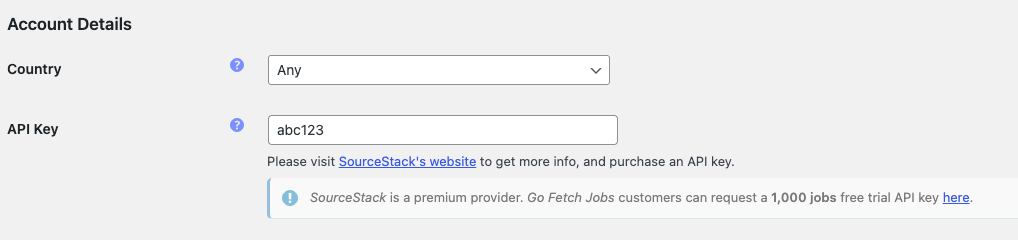
To start pulling jobs from the API this is all you need. All other settings are optional, and will vary between providers.
Other API Settings
Provider settings may also include defaults that apply to all imports using that provider. For example, you may be able to configure a default country, company, etc.
Provider-specific settings vary, so use the help icons and documentation links provided on each settings page.
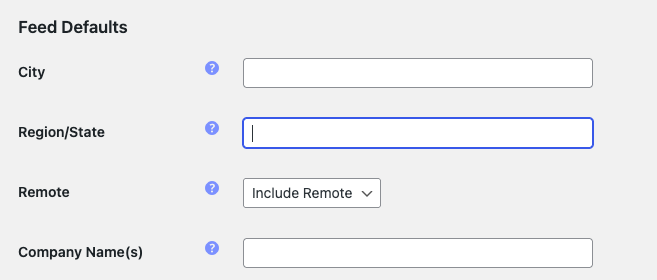
Any change that you do on these settings will be applied for ALL jobs imported for the provider.
Most of the settings are also available during the import but they will only apply to each single import, and not to ALL imported jobs. You’ll find descriptions and tips for each setting explaining their functionality.
Import Jobs from API
After setting up the API provider settings you want to use, you are ready to start importing jobs from that source.
Head over to the Import Jobs page and select the provider API from the list of pre-set providers. You can search for API’s if you start typing ‘API’ or just type the provider you’re looking for (e.g: sourcestack).
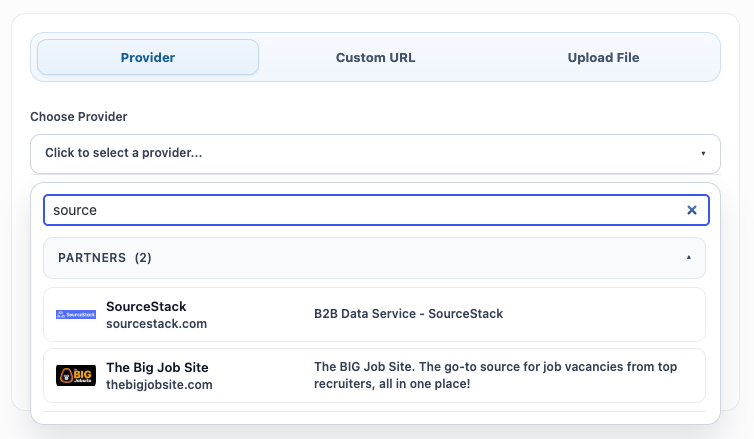
At this point you’ll notice why API’s provide more control over imported jobs. The will show several new fields that allow you to further control the jobs being imported.
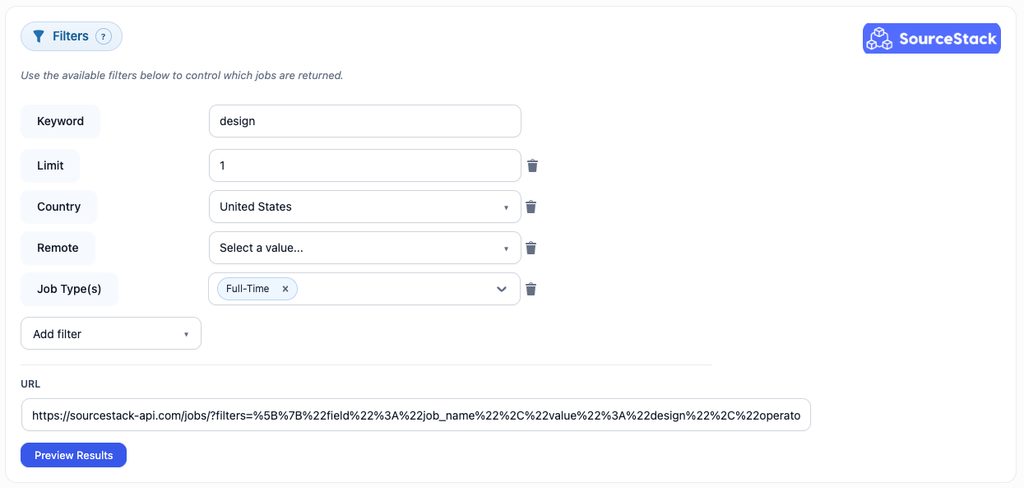
Preview Results
Click Preview Results to send the request to the provider.
The importer will display the number of jobs returned and a sample of the available fields.
Use the preview to confirm that:
- the correct country or location is being searched
- the keywords return the expected type of jobs
- the API credentials are working
- the provider returns enough job information;the result limit and other filters behave as expected
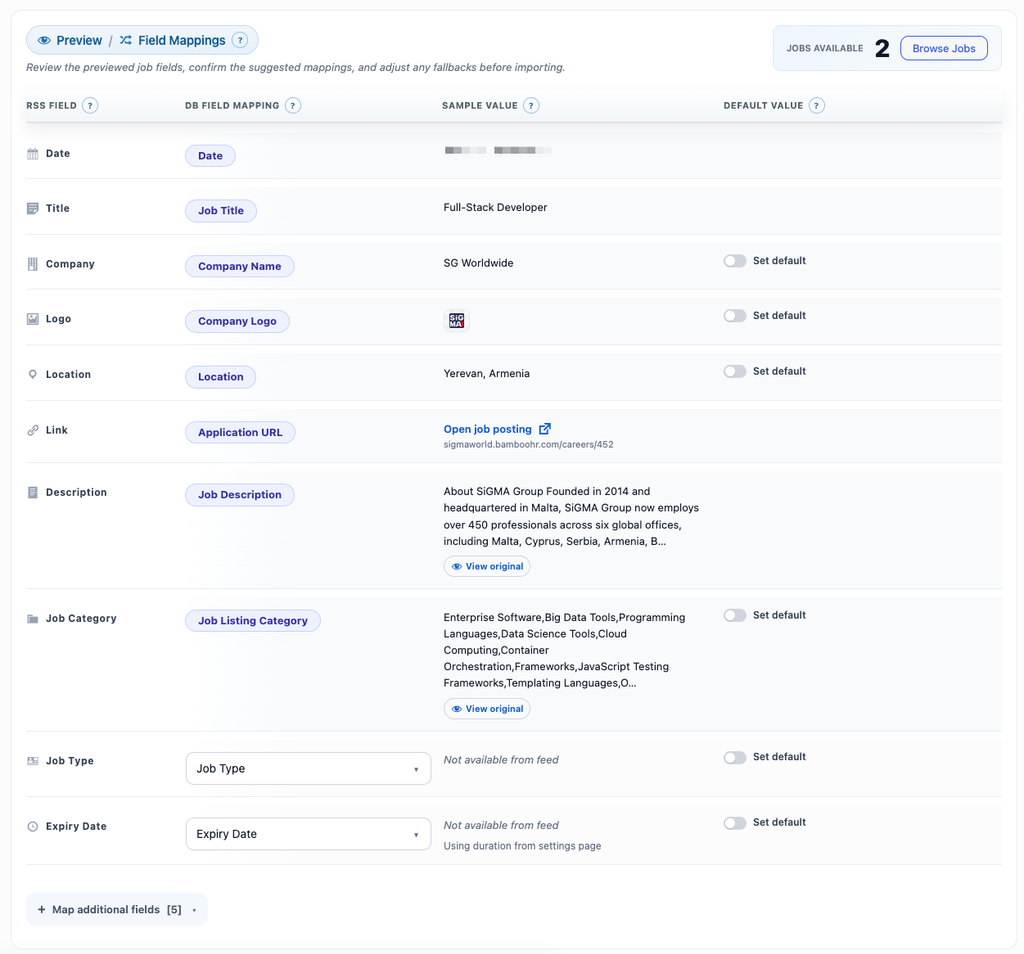
If no jobs are returned, first try a broader keyword, a different location, or fewer filters. Some providers use their own country codes, category names, or locale values.
Troubleshooting
If the preview returns no jobs:
- Check that the provider credentials are valid.
- Try a broader keyword.
- Remove optional filters.
- Confirm the selected country or locale.
- Check whether the provider expects a specific country or category code.
- Review the generated request URL.
- Confirm that the API account has available credits or requests.
If the API returns jobs but some fields are empty, review the field mappings and check whether the provider includes those fields in its response.
All other import settings are exactly the same as with regular RSS feeds. You can start importing jobs from the API right away by leaving their defaults or, if you need assistance configure the other settings, please read the related article.
Related Articles: